
If you’ve ever landed in a new country, opened your phone, and felt that tiny spike of anxiety when the signal bars didn’t appear, you’re not alone. I’ve been there too. More times than I care to admit. That exact moment is why best eSIM for international travel has quietly become one of the most useful travel technologies of our time.
But here’s the question many travelers now ask:
Can you use eSIM on multiple devices, phone, tablet, laptop, and even a smartwatch?
Short answer: Yes, but with important rules and smart strategies.
This guide is written from real-world experience, not theory. We’ll walk through how eSIM works across devices, what’s actually possible today, common mistakes to avoid, and how travelers use Roam eSIM to stay connected across all screens without stress.
What Is an eSIM and Why It’s Perfect for Multi-Device Travelers
An eSIM (embedded SIM) is a digital SIM built directly into your device. Instead of swapping plastic SIM cards, you download a mobile data plan instantly by scanning a QR code.
eSIM is especially useful today because modern travel has changed.
- We don’t travel with just a phone anymore
- Tablets replace guidebooks
- Laptops handle work on the go
- Smartwatches track movement and safety
The challenge? Keeping all of them connected.
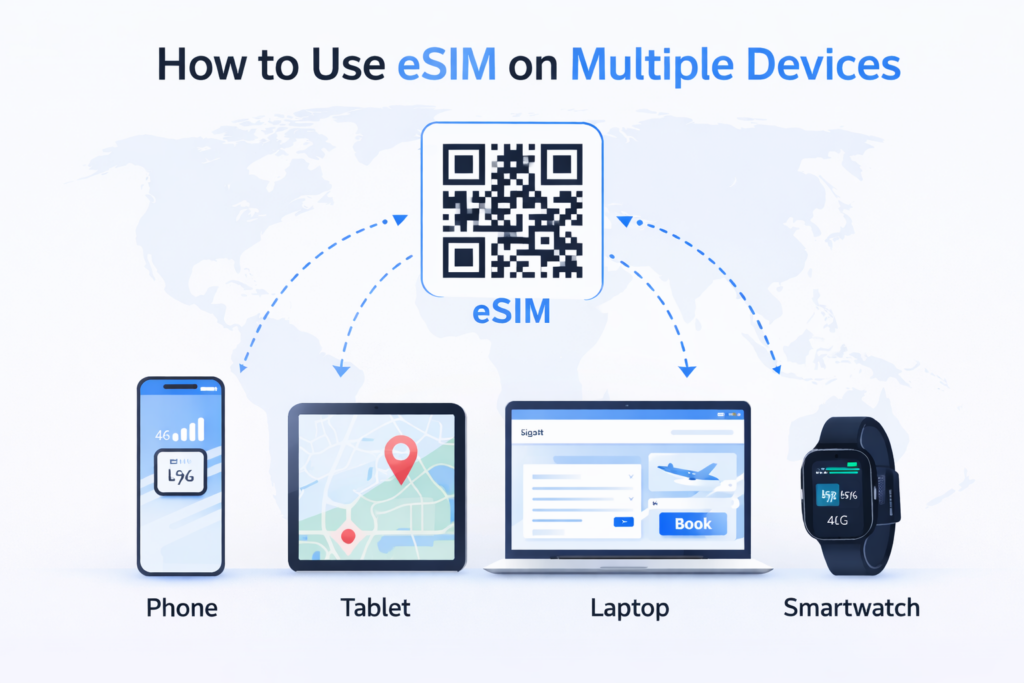
Can You Use One eSIM on Multiple Devices?
This is one of the most searched questions around eSIM multiple devices, and the answer deserves clarity.
The Truth (No Marketing Fluff)
- One eSIM profile cannot be active on multiple devices at the same time
- You can transfer an eSIM between compatible devices
- You can use separate eSIM plans across multiple devices
- You can share data using hotspot/tethering
Most confusion online comes from not separating these scenarios. Let’s break them down device by device.
Using eSIM on a Smartphone
Your phone is the command centre. Almost every traveler starts here.
Supported Devices
- iPhone XS and newer
- Google Pixel 3 and newer
- Samsung Galaxy S20 and newer
How to Install eSIM on a Phone
- Purchase a global or regional eSIM plan (like Roam eSIM)
- Go to Settings → Mobile / Cellular → Add eSIM
- Scan the QR code
- Name the plan (e.g., “Travel Data”)
- Activate from anywhere
Using eSIM on a Tablet, iPad & Android Tablets
Tablets are underrated travel tools. Maps, Netflix, and documents all without draining your phone.
eSIM on Tablet: What Works
- iPad Pro, iPad Air, iPad Mini and cellular models
- Some Samsung Galaxy tablets
How Travelers Use eSIM on Tablets
- Dedicated navigation screen in cars
- Backup connectivity ensures continued internet access if the phone battery dies.
- Kid entertainment on long trips
Installation Steps (iPad Example)
- Settings → Cellular Data → Add Cellular Plan
- Scan QR code
- Choose data-only usage
Tablets do not support calling / SMS via eSIM data only.
Using eSIM on a Laptop
This is where things get interesting and where most articles stop short.
eSIM on Laptop: Supported Models
- Windows laptops with LTE/5G (Surface Pro, ThinkPad X1)
- Some Snapdragon-based laptops
Why Digital Nomads Love This
- No café Wi-Fi risks
- No phone hotspot battery drain
- Direct, stable internet
How It Works
- Windows Settings → Network & Internet → Cellular
- Add eSIM profile
- Activate data plan
Real insight: Laptop eSIM is perfect for business travelers but still niche.
Using eSIM on a Smartwatch
Smartwatches are the most misunderstood eSIM devices.
Supported Devices
- Apple Watch (Cellular models)
- Samsung Galaxy Watch LTE
Important Limitation
Smartwatch eSIMs are usually:
- Paired with your phone
- Managed by the same carrier
This means travel eSIMs typically don’t work independently on watches yet.
Practical Use Case
- Use phone eSIM
- Share data via Bluetooth / companion connection
Comparison Table: eSIM Across Devices
| Device | eSIM Supported | Can Share One Plan? | Best Use Case |
| Smartphone | Yes | No | Primary travel connection |
| Tablet | Yes | No | Maps, media, backup |
| Laptop | Limited | No | Work & secure browsing |
| Smartwatch | Limited | No | Companion device |

How to Transfer eSIM Between Devices
Transferring eSIM is one of the most misunderstood processes.
What You Need to Know
- Most eSIMs are single-device by default
- Transfer requires deleting from the old device
- Some providers allow reinstallation
Safe Transfer Process
- Delete eSIM from Device A
- Re-scan QR or request reactivation
- Install on Device B
eSIM Compatibility Devices: How to Check Before Buying
Before purchasing any plan, always check:
- Device model (not just brand)
- Region-specific limitations
- OS version
Roam eSIM provides a live compatibility list to avoid surprises.
Real-World Travel Scenarios
| Solo Traveler | Digital Nomad | Family Travel |
| Phone: Roam eSIM (primary) | Laptop: eSIM for work | One Roam eSIM phone |
| Tablet: Offline maps + hotspot | Phone: Local + Roam eSIM backup | Hotspot shared to tablets |
People Also Ask
No. One eSIM profile works on one device at a time.
Yes, if the provider allows reinstallation.
Yes, on supported models.
For most travelers, absolutely.
Final Thoughts: The Smart Way to Use eSIM on Multiple Devices
Using eSIM across multiple devices isn’t about finding a hack, it’s about using the technology the right way. When you understand the limits and design your setup smartly, eSIM becomes incredibly powerful .With Roam eSIM, travelers stay connected across borders, devices, and moments without the usual chaos.